
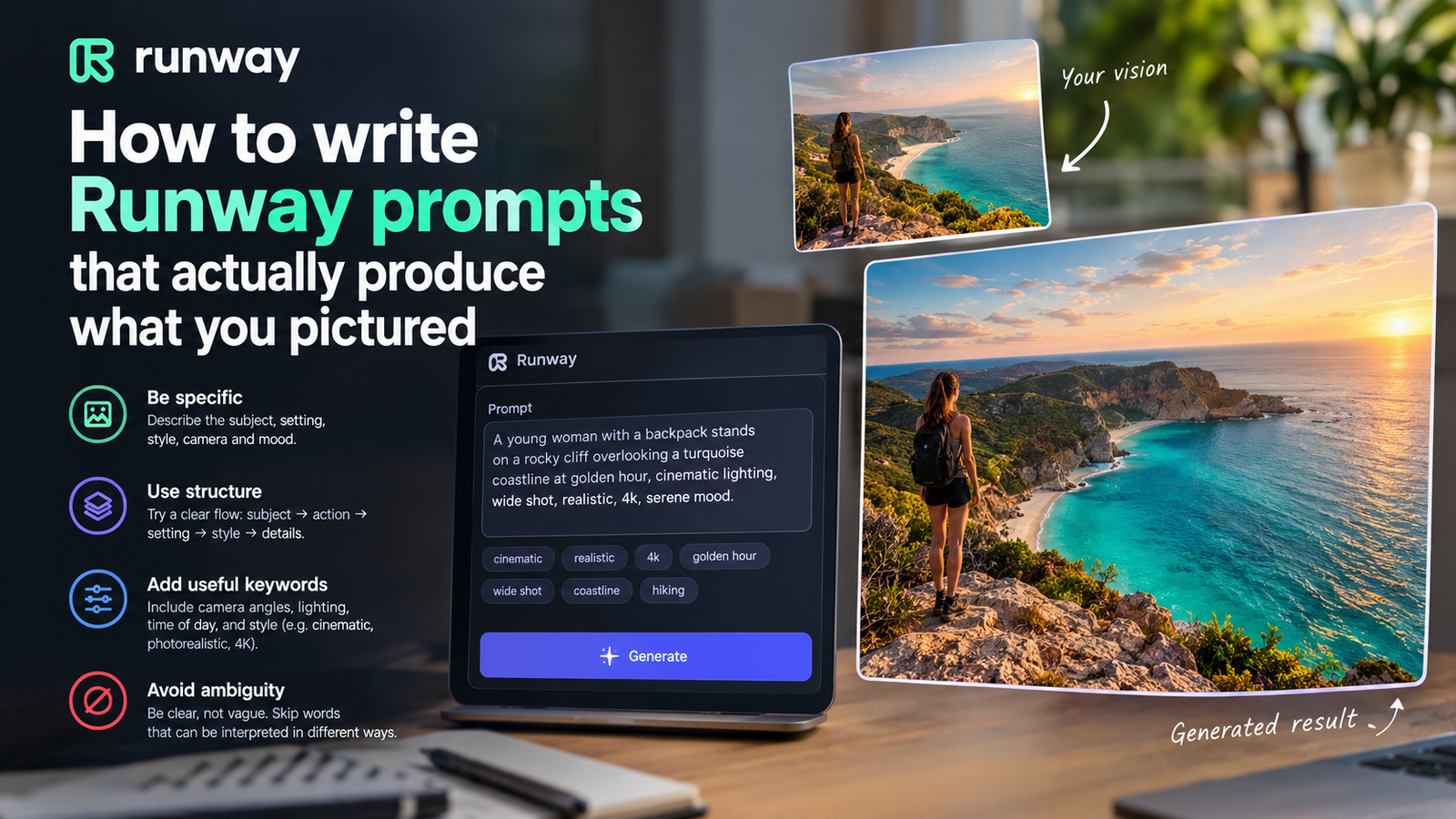
You will finish this guide knowing how to write Runway prompts that accurately turn your vision into generated video by using foundational Real-World Intelligence.
What you will end up with
Runway is building foundational Real-World Intelligence that can understand, simulate and act in the world.
Our read: When you sit down to write a prompt, you need to understand how the underlying system processes your words. The software relies on advanced simulation capabilities to interpret text inputs. Expect your final outputs to reflect this intelligence engine. Take time to study how the tool handles physical movement and lighting cues before hitting generate. Keep your expectations aligned with what an AI video model can realistically render from text descriptions alone.
Before you start
Do not jump into the generation interface without your concepts fully mapped out. Higher tiers exist for teams and enterprises, but an individual account works fine for testing prompts. Make sure your browser is up to date to avoid interface lag during the rendering phase. Keep your reference notes close by so you do not waste time brainstorming while the application window is open.
- Access to the Runway platform
- An active internet connection
- Your descriptive text ideas written out in a notebook or document
Steps
Follow these operational procedures carefully to translate your mental image into a precise text command. Precision in your wording dictates how well the simulation engine interprets your desired scene.
- Open the Runway generation interface in your web browser.
- Type a clear description of the subject into the text input box.
- Add specific details about lighting and camera movement to the prompt.
- Click the generate button to process your text input through the simulation engine.
What success looks like
Success means the generated video matches the core elements you typed into the prompt box. You should notice proper lighting, realistic subject movement, and coherent environmental physics. If the output looks chaotic, your wording was likely too vague. Compare your output frame by frame against your original written concept to verify accuracy. Save the prompts that produce the best results so you can reuse their structure later.
Common mistakes
A frequent error is writing overly complex prompts that overwhelm the simulation capabilities. Avoid using vague adjectives that do not give the engine concrete visual data to render. Do not skip details about camera framing, because the software needs guidance on perspective. Another mistake is ignoring how physical objects interact within the scene description. Keep your descriptions grounded in physical reality to help the tool understand, simulate, and act effectively.
Where to go next
Take your successful prompt formulas and test them across different subject matters to test the limits of the software. Modify single words in your working prompts to see how the simulation engine reacts to subtle changes. Keep a dedicated log of your most effective prompt structures for future projects. Experiment with varying levels of descriptive detail to find the exact sweet spot for output quality.
How we verified this
Evidence level: Researched from official sources. TNTReview did not test this product directly. Every factual claim above comes from the official sources listed here.
- Runway ML official site, checked 2026-09-30 (1 fact on this page)
Last verified: 2026-09-30