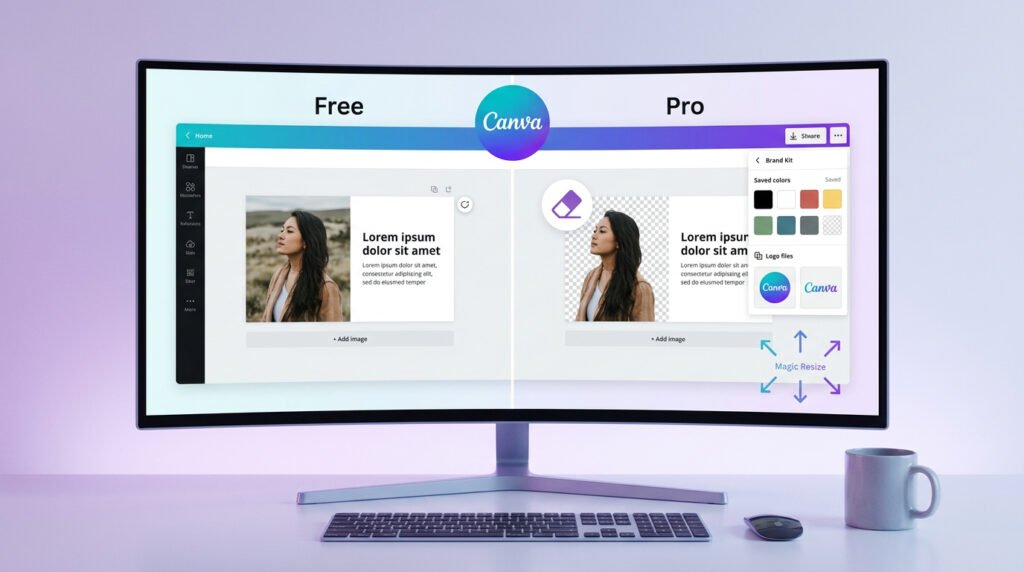
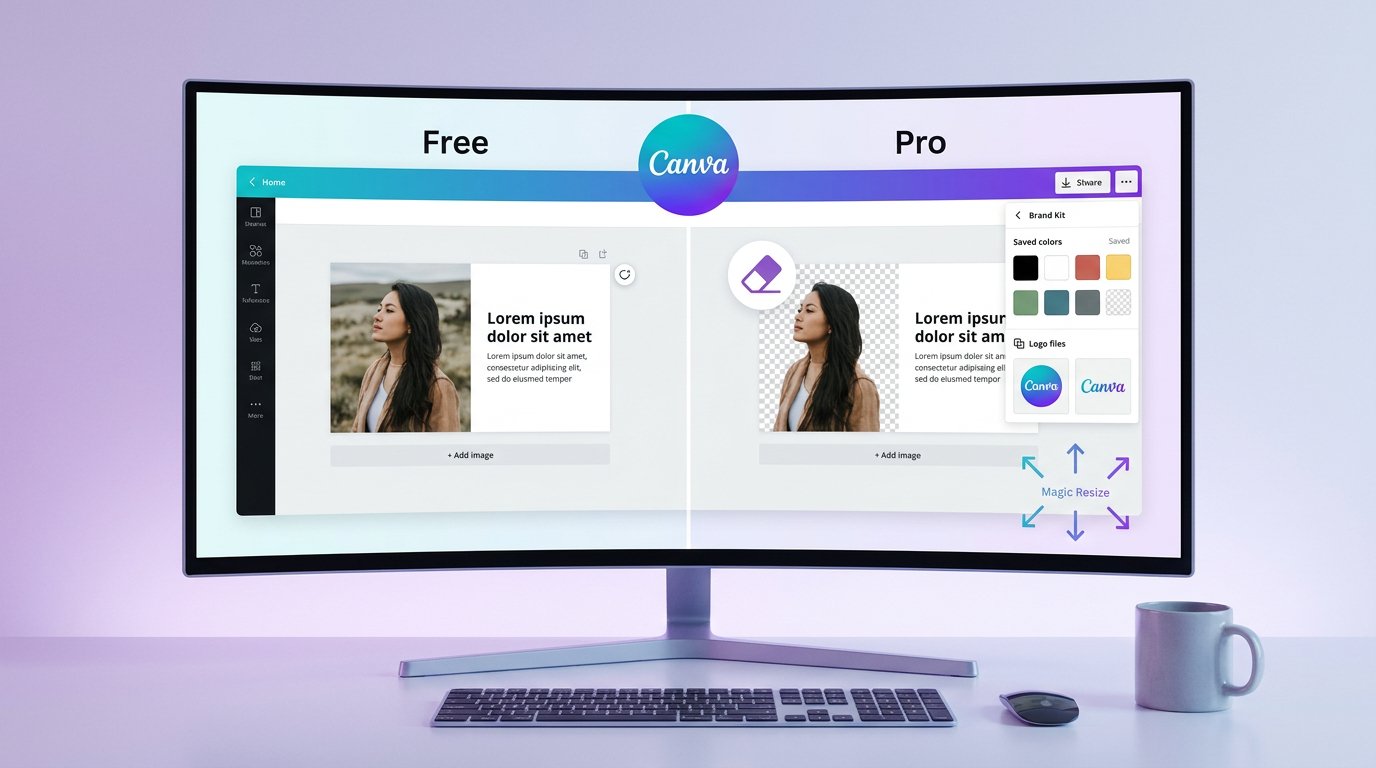
If you are searching for a straight answer on Canva Pro vs free 2026, here it is: upgrading makes sense if you create content regularly, and the free plan is genuinely solid if you design occasionally. This breakdown covers every Pro feature difference, what actually earns its keep, and what Canva promotes heavily but most users never touch.
Quick Answer: Is Canva Pro Worth It?
If you create content regularly, yes. If you design occasionally, no.
That is the short version. If you want to know exactly which Pro features earn their keep and which ones are mostly marketing, keep reading.
Canva Pro vs Free 2026: What’s Actually Different
Here is what each plan includes as of 2026.
| Feature | Free | Pro |
|---|---|---|
| Templates | 250,000+ | 610,000+ |
| Storage | 5GB | 1TB |
| Stock library | Limited selection | 100+ million photos, videos, audio |
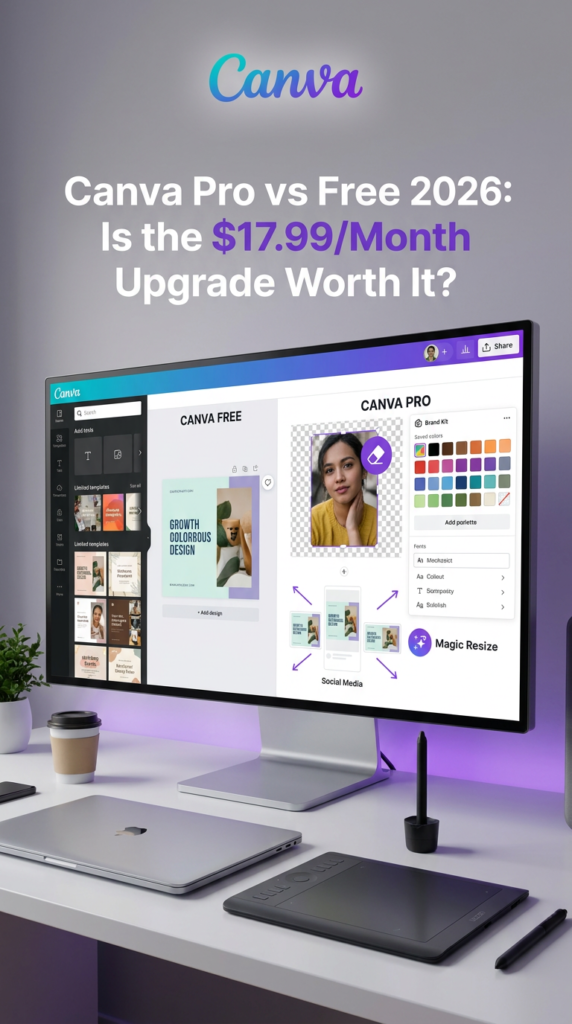
| Background Remover | No | Yes |
| Brand Kit | Basic | Unlimited |
| Magic Resize | No | Yes |
| Magic Studio AI tools | Limited monthly uses | Unlimited |
| Custom font upload | No | Yes |
| Transparent PNG export | No | Yes |
| Social media scheduler | No | Yes |
| Team members | 1 | Up to 5 |
| Price | $0 | ~$17.99/month (billed monthly) |
The annual plan works out cheaper per month. Check Canva’s pricing page for the current rate in your currency, as it varies by region.
The Pro Features That Actually Earn Their Keep
These are the features I use personally, every time I open Canva. I am separating real value from the features Canva uses to sell the upgrade.
Background Remover
This one alone might justify the upgrade if you make a lot of social media graphics or thumbnails. On Free, removing a background means leaving Canva, using an external tool, downloading the result, and re-uploading it. On Pro, you click one button and it is done in about three seconds. The quality is solid for most use cases.
If you create thumbnails, product posts, or any graphic where you need a subject separated from its background, this saves real time every single day.
Brand Kit
The Brand Kit lets you save your logo, colour palette, and fonts so they load instantly on any new design. For anyone running a personal brand, a business, or content across multiple accounts, this is a genuine productivity tool. Without it, you are manually entering hex codes and re-uploading fonts every session.
Once your brand is set up in the kit, consistency across hundreds of designs becomes automatic instead of something you have to remember to maintain.
Magic Resize
You design something for Instagram at 1080×1080. Then you need it as a TikTok vertical at 1080×1920, a Facebook banner at 851×315, and a Pinterest pin at 1000×1500. Without Magic Resize, you are rebuilding each version from scratch. With it, you click resize, pick the format, and spend thirty seconds adjusting any elements that shifted.
For content creators who post across multiple platforms daily, this is where Canva Pro pays for itself most clearly.
Unlimited Stock Library
The free plan has a decent library but you will hit the wall fast on anything specific. Pro opens up over 100 million photos, videos, and audio clips. In practice, this means fewer situations where you settle for a mediocre image because the one you actually wanted is sitting behind a Pro lock.
AI Credits: Magic Studio
Canva’s AI tools, including Magic Write, Magic Eraser, Magic Edit, Magic Expand, and Magic Grab, are available on the free plan but with a monthly credit limit. On Pro they are unlimited. If you use these tools regularly for content production, running out of credits mid-project on the free plan is a real frustration.
Pro Features That Sound Good but Most People Never Use
Being honest here, because the Canva sales page makes everything sound essential.
Content Planner: Canva lets Pro users schedule posts directly to Instagram, Facebook, Pinterest, and a few others. In theory, useful. In practice, if you already use Buffer, Later, Metricool, or Blotato, you are not going to switch your scheduling workflow to Canva. This feature is worth using only if you are an absolute beginner with no scheduler at all.
PDF to Presentation converter: Occasional use case, mostly for agency or corporate work. Most content creators never open it.
Translate: Canva can translate a design into other languages. Valuable for multilingual brands. If that is not your situation, it does not apply.
Presenter View: Useful for giving live Canva-built presentations. Not relevant for most content creators and social media workflows.
When Canva Free Is Genuinely Enough
The free plan is more capable than most people give it credit for, and I want to be clear about that.
If you are a beginner just starting out, you do not need Pro yet. The free template library is large enough to build a workflow around. You can create solid social media posts, simple logos, and clean documents without spending anything.
Stay on free if:
- You design once or twice a week at most
- You are not running a consistent brand yet
- You do not need to resize designs across multiple platforms
- You are okay using a free external tool to remove backgrounds occasionally
My honest advice: start on free and upgrade only when the limitations are genuinely slowing you down. That moment will be obvious when it arrives.
When Canva Pro Is Worth Every Cent
The upgrade makes sense once the free plan is costing you time rather than saving it.
Canva Pro earns its cost if:
- You create content daily or multiple times a week
- You run a brand that needs consistent visual identity, with logos, fonts, and colours always ready
- You post across more than two platforms and need different image sizes regularly
- You use the background remover more than once or twice a week
- You are running out of AI credits before the end of the month
For content creators specifically, the tipping point is usually the combination of Brand Kit, Magic Resize, and Background Remover working together. Those three features cut design time noticeably once you are producing volume.
Canva Pro for Freelancers: Is It Worth It?
If you create graphics for clients as part of your work, Canva Pro is almost certainly worth it. The ability to set up a separate Brand Kit per client, access a wider stock library without paying per image, and resize deliverables quickly adds up to genuine time savings over the course of a month.
The alternative is paying for stock photos separately, which gets expensive. A Pro subscription that replaces even one or two individual stock image purchases per month is already close to breaking even.
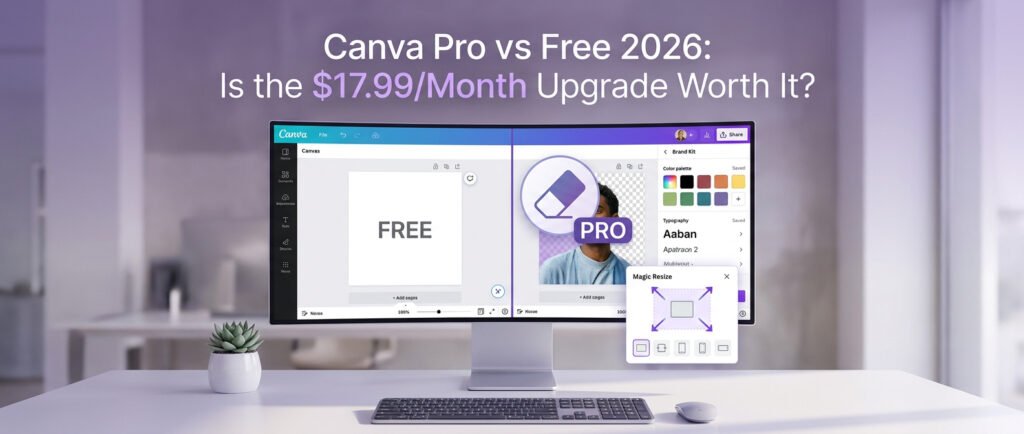
Is $17.99/Month the Right Price?
This is my opinion, clearly labeled as such.
At the monthly billing rate, $17.99 USD needs to be earning its keep consistently. If you are using Background Remover, Brand Kit, and Magic Resize regularly, the value is there. If you signed up for Pro and mostly use free templates with basic exports, you are paying for features you are not touching.
The annual plan is the smarter option if you are committing to Canva long-term. Paying annually reduces the monthly cost and if you use Canva daily as a creator, the annual fee is reasonable for a core production tool.
One thing worth knowing: Canva pushes the Pro upgrade aggressively throughout the free interface. Lock icons appear constantly on premium elements. This can make the free plan feel more restricted than it actually is. Many of those locked elements have perfectly good free alternatives right next to them. Do not let the lock icons push you into upgrading before you actually need it.
Alternatives If You Cancel or Skip the Upgrade
If Canva Pro does not fit the budget right now, these are the honest alternatives worth knowing.
Adobe Express (free tier): A solid free design tool from Adobe. Less beginner-friendly than Canva but has a reasonable template library. Good for one-off graphics.
Freepik: Strong for AI-generated images and premium design assets. Worth having alongside a free design tool. Read our Freepik review.
Microsoft Designer: Free with a Microsoft account and improving steadily. Better suited for one-off designs than high-volume content creation.
Staying on Canva Free: Genuinely underrated and a valid choice for longer than most people think.
Official Sources Worth Checking
Before subscribing, check the official pages because pricing, features, limits, and availability can change:
Canva Pricing (Free vs Pro vs Teams):
https://www.canva.com/pricing/
Canva Pro Features:
https://www.canva.com/pro/
Canva Magic Studio (AI tools overview):
https://www.canva.com/magic-studio/
Canva Brand Kit:
https://www.canva.com/brand-kit/
Canva Help Centre:
https://www.canva.com/help/
Final Verdict
Rating: 4 out of 5
Canva Pro is a genuinely useful product for the right user. For content creators producing graphics daily across multiple platforms, it pays for itself in time saved. The Background Remover, Brand Kit, and Magic Resize are real features that make a real difference to a real workflow.
For casual or occasional designers, the free plan is enough. There is no reason to upgrade just because the option exists.
Who should upgrade: Freelancers, content creators, and small business owners who produce content consistently and post across multiple platforms.
Who should stay on free: Beginners, occasional users, and anyone who is not yet hitting the limits of the free plan.
The shortcut: Stay on free for 30 days. If you find yourself working around the background remover, typing brand colors from memory, or manually rebuilding designs for different platforms on a regular basis, upgrade then. You will know the moment when you actually need it.