
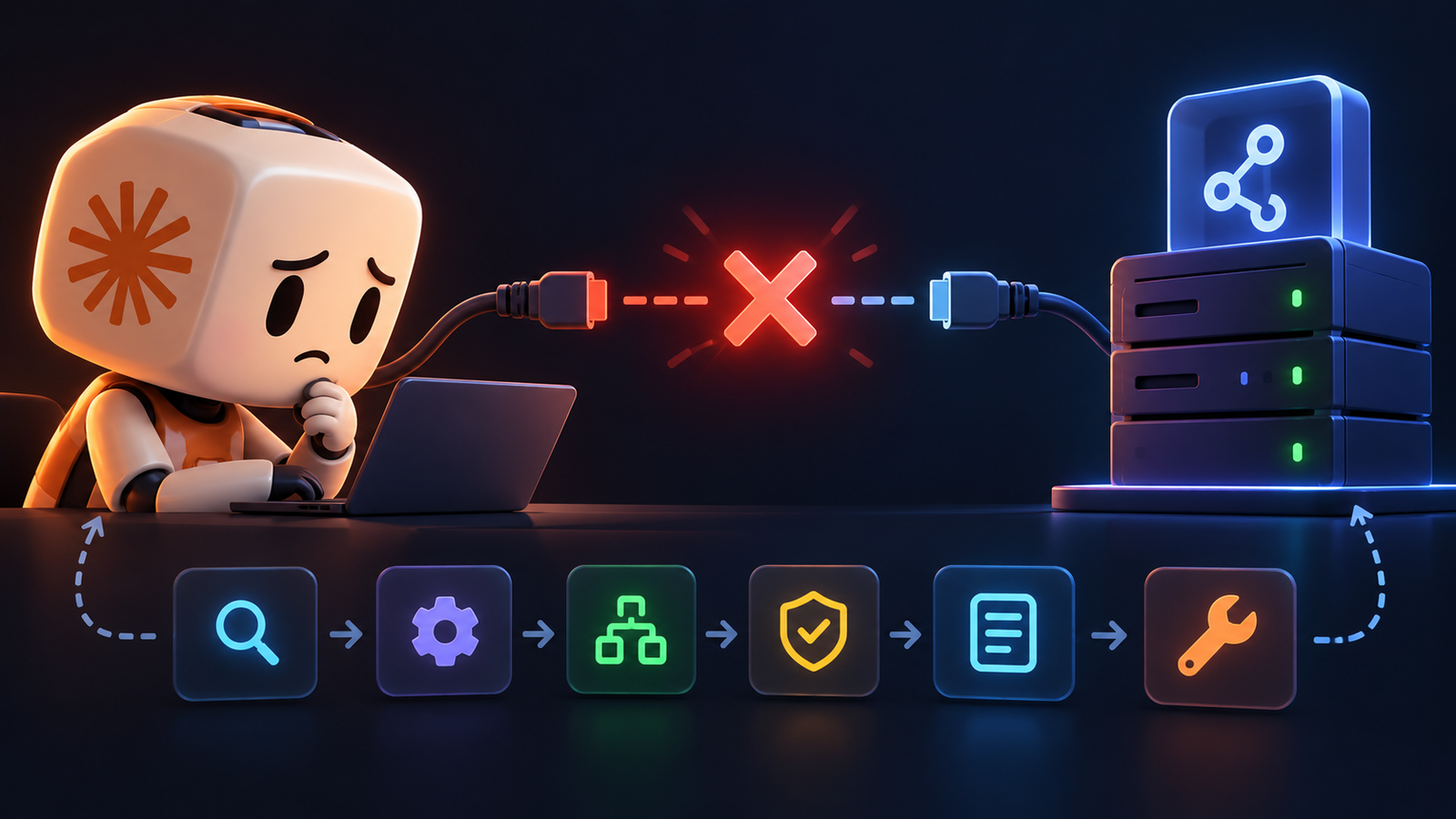
When Claude Code cannot connect to your local or remote Model Context Protocol server, the failure usually stems from a local configuration typo or an offline service process rather than a software bug.
The problem
Our read: You stare at the terminal and see the connection drop instantly when trying to reach your local Model Context Protocol server. This blocks your workflow because the coding agent cannot read your custom tools or local databases. Do not panic and do not reinstall your entire terminal environment just yet. Instead, isolate the exact point where the handshake fails between the client and the background process. Look closely at the standard error output in your console to catch the exact error code thrown during startup.
Likely causes, most common first
The most frequent culprit is a mistyped file path inside your configuration file, pointing the client to a directory that does not exist or lacks executable permissions. Another common issue is that the underlying background server process crashed immediately upon launch due to a missing environment variable or a conflicting port binding. Finally, check if your local runtime version meets the minimum requirements demanded by the server script. A mismatched Node or Python version will silently kill the background process before the client ever establishes a socket connection.
Fixes in order
Follow these exact troubleshooting steps in sequence to restore the connection without breaking your current setup. Start by verifying every single path string in your configuration settings against your actual directory tree. Next, launch the server manually in a separate terminal window to inspect its raw output and catch any unhandled startup exceptions. Confirm success by checking that the service process remains running stably without throwing immediate exit codes or stack traces.
- Open your configuration file and verify that every absolute file path points to a valid directory.
- Launch the server script manually in your terminal to view raw startup logs and error messages.
- Check that all required environment variables are present in your active shell session before starting the client.
- Restart the client application entirely to force a fresh reload of all connected background tools.
When it is a limitation, not a fault
Sometimes the connection refusal is not a bug you can fix by editing local configuration files. Complex team, business, enterprise, or education network environments often block local socket communication or loopback traffic entirely via strict firewall rules or corporate proxy settings. If your network administrator enforces strict transport security policies that prevent local inter-process communication, local servers will consistently fail to bind. Verify whether other local tools experience similar socket timeouts before spending hours debugging script syntax.
If none of that worked
When all local troubleshooting steps fail and the background process still refuses every connection attempt, you need to bring the issue to official support channels. Gather your complete terminal logs, the exact configuration file contents with sensitive keys redacted, and your operating system version details. Submit this diagnostic package directly through the official Anthropic support portal or open a detailed bug report on the official GitHub repository for the client tool to get direct engineering assistance.
How we verified this
Evidence level: Researched from official sources. TNTReview did not test this product directly. Every factual claim above comes from the official sources listed here.
- Claude official site, checked 2026-10-02 (1 fact on this page)
Last verified: 2026-10-02