
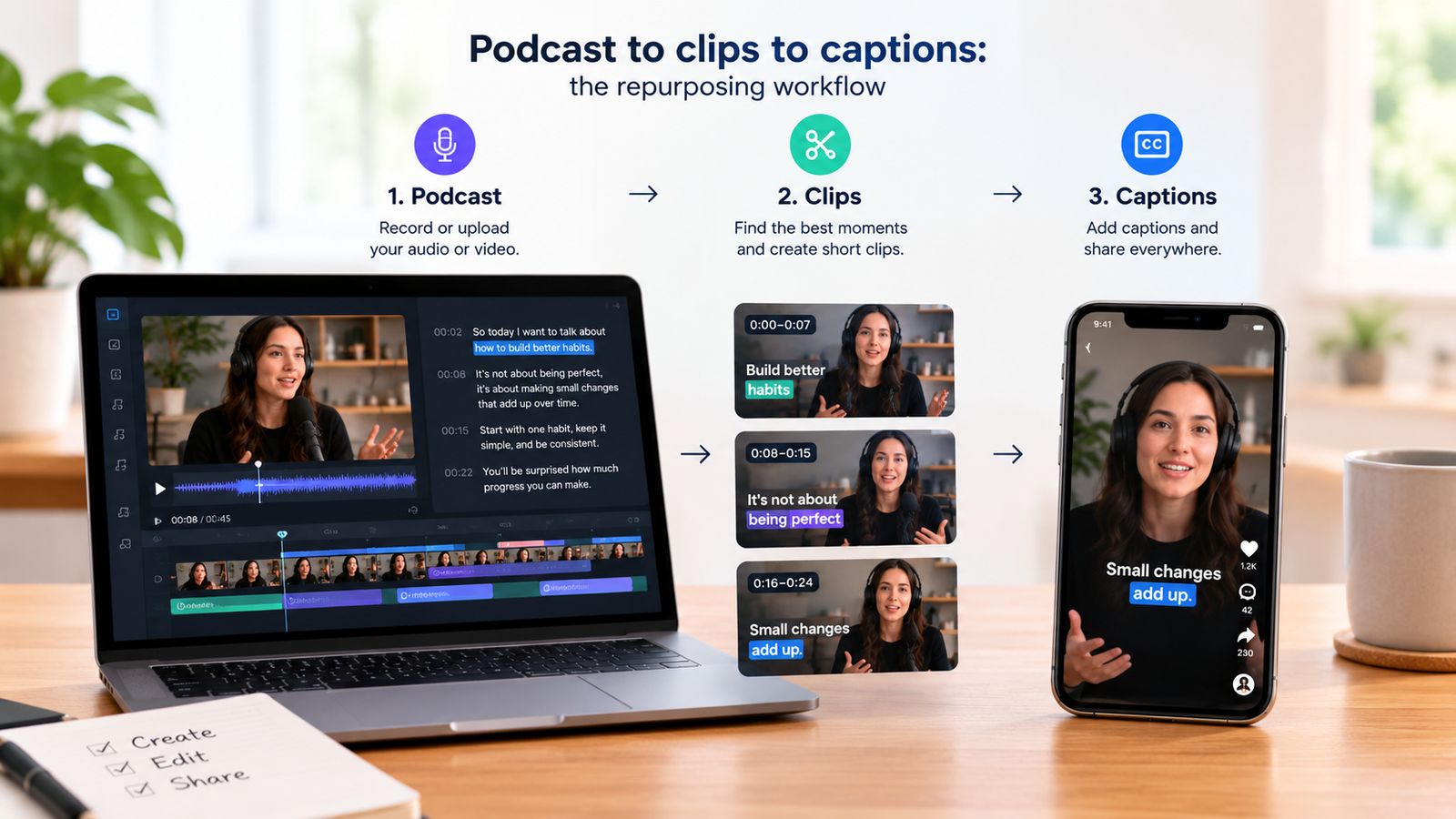
This workflow turns raw podcast recordings into short video clips with on-screen captions.
Goal
The objective of this pipeline is to extract short, engaging moments from a long audio or video interview and prepare them for social media platforms like YouTube and Instagram.
Our read: Do not try to repurpose an entire episode all at once. Pick three distinct conversational beats that hold their own meaning without needing the surrounding context. Focus your attention entirely on the strongest hook in the first ten seconds of each clip to keep viewers from scrolling past.
- Transform one long recording into multiple vertical snippets
- Generate automated text captions for silent viewing
- Prepare files for mobile-first distribution channels
Inputs
You need a finished master recording of your podcast or interview in a standard audio or video format before starting this process.
Clean source audio makes every downstream task faster. If your guest has background noise or room echo, fix those issues in your initial recording project before you start cutting clips. Trying to repair bad audio after you have already chopped the file into smaller pieces creates unnecessary duplicate work.
- One master audio or video file of the complete podcast episode
- A clear idea of which moments contain the strongest standalone arguments or stories
Tools
Descript is an AI video and audio editor that lets you edit by editing text.
CapCut is an AI-powered photo and video editor designed for everyone to create content for YouTube, Instagram, and beyond.
Using two separate applications might feel redundant, but it plays to the specific strengths of both environments. Descript excels at letting you read through a transcript to find quotes, while CapCut provides faster visual styling controls for vertical social formats. Stick to this division of labor rather than forcing one tool to handle every single step.
- Descript for text-based editing and initial cuts
- CapCut for final visual polish and caption styling
Steps
Work sequentially through these steps without skipping ahead. Rushing the text cleanup phase in the first application guarantees formatting errors later when you try to generate captions in the second program.
- Import your master podcast file into Descript to generate a full transcript, producing a searchable text document of the entire conversation.
- Highlight the specific paragraphs containing your chosen clip and export that segment as a separate video file, yielding an isolated standalone scene.
- Import the isolated clip into CapCut to frame the video vertically and apply automated caption styling, resulting in a finished social-ready file.
Cost
You can complete this entire workflow using free tiers if your volume is low, but heavy users will eventually run into export limits or feature gates. Check your monthly output volume before committing to a paid subscription so you do not pay for enterprise or team features you do not need as a solo creator.
- Descript operates on tiered subscription plans with free and paid options
- CapCut offers free access alongside upgraded paid tiers
Time
Allocate a dedicated hour for your first attempt at this workflow. The process speeds up considerably once you memorize the keyboard shortcuts in both applications and stop second-guessing your caption font choices.
- Transcription and initial text review take roughly fifteen to thirty minutes per episode
- Exporting and styling individual clips takes about ten to fifteen minutes per snippet
Expected output
Verify that your final exports play correctly with the sound turned off before you upload them anywhere. If your captions contain misspelled names or awkward line breaks, fix them in the editing timeline rather than publishing a flawed file.
- Three to five vertical video files formatted for social feeds
- Embedded or burned-in text captions synchronized with the spoken audio
Common failures
The single most frequent mistake is letting automated tools make unsupervised decisions about what makes a good clip. Always review the generated transcript manually to catch embarrassing transcription errors before you send the file to your design stage.
- Leaving awkward pauses at the start of a clip instead of cutting straight to the first spoken word
- Placing captions too low on the vertical screen where platform interface elements block the text
- Forgetting to check automated transcription errors before burning captions onto the video
Cheaper alternative
While native platform tools cost nothing extra, they lack the text-based search capabilities that make finding specific quotes efficient. Only drop down to purely manual workflows if your monthly podcast output is low enough that spending time replaces spending money.
- Using free built-in editing tools inside platforms like TikTok or Instagram directly
- Doing manual transcriptions and cutting entirely inside a traditional free timeline editor
Who this suits
This pipeline is built for individuals who manage their own media production from end to end. If you are part of a massive media organization with dedicated video editors, you should skip these consumer tools and stick to professional non-linear editing suites.
- Solo podcasters who want to promote their long-form episodes on visual social networks
- Content creators who prefer editing text over scrubbing through complex audio waveforms
How we verified this
Evidence level: Researched from official sources. TNTReview did not test this product directly. Every factual claim above comes from the official sources listed here.
- Descript official site, checked 2026-09-19 (1 fact on this page)
- Capcut official site, checked 2026-09-19 (1 fact on this page)
Last verified: 2026-09-25